Top up


TL;DR
To join a voice chat room on mobile, install the app from an official source, sign in if required, browse the room list, read the room description, and tap a room to enter. Listen first. Grant microphone access only when you plan to speak, then use an available microphone position or request permission. Leave, block, or report when a conversation crosses your boundaries.
Joining a mobile voice chat room usually takes three actions: choose a room, enter as a listener, and use the room's speaking control when you are ready. On Xena, the official FAQ directs users to the Chat Rooms section and says speaking may require an available microphone position or host approval. Button labels can change by version.
Before you join
Use the service's official website or recognized app-store listing to find the current download. Xena's official FAQ identifies the Apple App Store, Google Play, and an official Android APK on the Xena website as download routes. Availability can vary by device, region, account, and app version, so verify the current listing rather than relying on an old link or screenshot.
· Update the app and your phone's operating system when an update is available.
· Use headphones in a shared space to reduce echo and protect the conversation from bystanders.
· Choose a display name and profile details that do not expose sensitive personal information.
· Check your mobile data or Wi-Fi connection before entering a live room.
Mobile steps for joining a voice chat room
1. Open the app and complete the current sign-in or account setup shown on screen.
2. Open the room-discovery area. In Xena's current help language, this is the Chat Rooms section.
3. Browse by visible topic, language, activity, or community. Read the room name and description before entering.
4. Tap the room to enter. Start by listening so you can understand the topic and speaking order.
5. When you want to speak, tap an available microphone position or use the request control presented by the room.
6. Mute when you finish. Leave the room when you are done or whenever the conversation no longer feels appropriate.
Some rooms permit immediate participation, while others require approval from a host or moderator. Follow the control shown in that room instead of assuming one process applies everywhere.

Microphone permission and listening mode
A phone controls whether an app can access the microphone. On iPhone, Apple directs users to Settings, Privacy & Security, then Microphone to review or change app access. On Android, Google directs users to Settings, Apps, the selected app, then Permissions. Menu wording may differ by manufacturer or operating-system version.
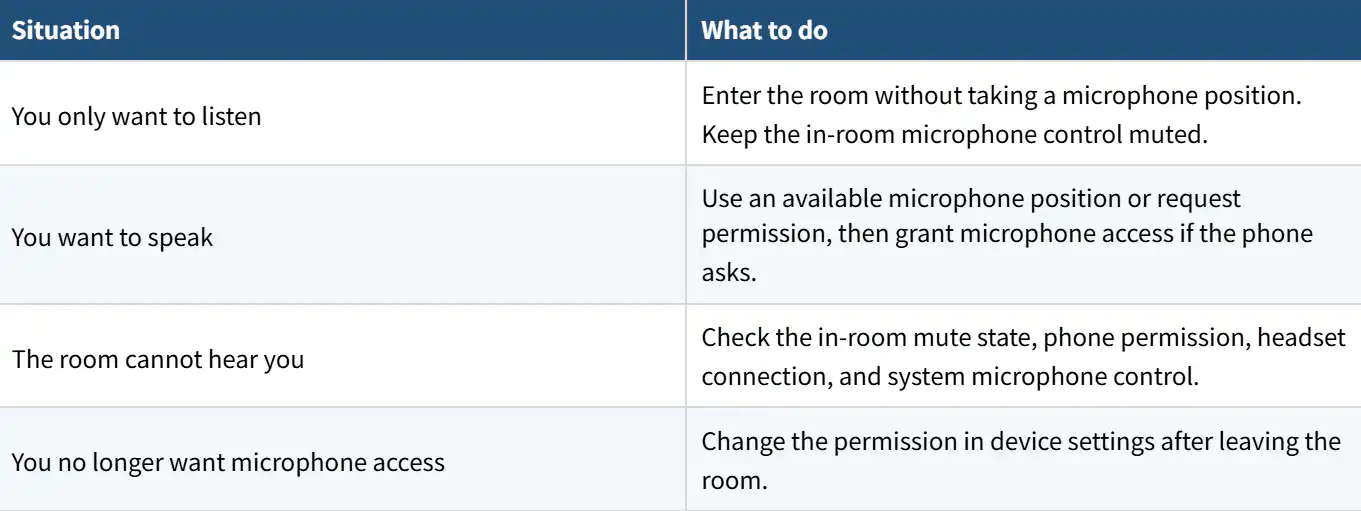
Listening without speaking is a room-role choice, while microphone permission is an operating-system control. Keeping those concepts separate makes troubleshooting easier: you can have microphone permission enabled and still remain muted, or deny permission and continue listening where the room supports it.
Choose a room that fits your task
Room discovery is more useful when you start with a purpose. A language practice room, a game discussion, and a casual audio event can have different expectations. Review the name, description, current speakers, and visible room rules. If the topic is unclear, listen before taking a microphone position or choose another room.
Example: Maya wants a short language-practice session during her commute. She chooses a room whose description matches the language, listens with headphones, and waits until she is stationary before requesting a speaker position. She shares only the topic she wants to practice and leaves when the session ends.
Leave and use safety controls
Leaving is always a valid response. Xena's safety page says users can exit a room at any time and provides block and report controls. Use Report when an account, room, or activity may violate the platform's rules. Keep passwords, verification codes, identity documents, exact location, and daily routine private.
· Leave if someone pressures you to reveal personal information or move to an unverified channel.
· Block unwanted direct contact when the available control fits the situation.
· Report conduct that appears to break the platform's rules, adding useful context when requested.
· Contact local emergency services if anyone faces immediate danger.
Frequently Asked Questions
Can I listen without speaking?
Yes. On Xena, you can enter a voice room and listen before using a microphone position or requesting permission to speak. Keep the microphone muted until you are ready.
Why does a voice chat app ask for microphone permission?
The permission allows the app to record and transmit audio when you choose to speak. You can review or change access in your phone settings.
What if no microphone position is available?
Continue listening or use the room's request process if one appears. A host may need to approve participation, and availability can change during the session.
Where should I download Xena?
Use the official Xena website or the current Apple App Store or Google Play route identified by Xena. Confirm the listing and developer details before installing.
How do I leave a voice chat room?
Use the visible leave control in the room. If the interaction is concerning, consider blocking the account or submitting an in-app report after you exit.