Top up

Joining a voice chat room should feel like a choice you control. Before you speak, it helps to know what others can see, whether your microphone is active, and how to stop an interaction you do not want.
Voice chat safety involves both privacy settings and everyday decisions. This guide explains what to check before joining, how different safety tools work, and which specific Xena settings can help you manage your experience.
TL;DR
Check your profile, app permissions, and microphone status before speaking. Keep sensitive information out of room conversations, including background audio. Use blocking to limit unwanted contact, reporting to flag rule-breaking behavior, and leaving to end your participation. On Xena, some privacy options have VIP requirements, so check what is available to your account rather than assuming every setting is included.
Is Voice Chat Safe? Know What You Can Control
Voice chat can be enjoyable, but a room may include people whose intentions you do not know. Common concerns include harassment, pressure to share personal details, suspicious links, and accounts pretending to represent the platform.
You can control what you share, which permissions you grant, and whether you continue participating. Platform moderation provides another layer of support, but it cannot prevent every uncomfortable interaction.
If someone repeatedly asks where you live or requests a verification code, stop sharing information. You do not need to prove that their behavior breaks a rule before leaving. Xena’s safety guidance specifically warns against sharing passwords or verification codes with someone claiming to work for Xena. Verify suspicious contact through in-app support.
Check Your Profile and Privacy Before Joining
Review What Others Can See
Look at your nickname, avatar, and profile description. A workplace in your bio, a recognizable photo, and a username reused elsewhere may reveal more together than you intended.
Xena’s Settings → Privacy menu includes several specific visibility controls. Its usage guide lists Hide Last Online at VIP 2 and Hide Country or Region at VIP 8. Disable Say Hi is also listed at VIP 8.
These options address different parts of your experience. Hiding your last-online status does not hide every profile detail, and hiding your country does not remove location information you mention yourself. Check the requirements shown in your app, since availability may change with updates.
Think About What Your Voice Reveals
Privacy includes what people hear. A housemate calling your full name, a delivery conversation, or a work meeting in the background can expose information you never meant to share.
Use headphones to keep room audio from playing aloud around others, and mute your microphone when private conversations begin nearby. Headphones alone do not prevent your microphone from picking up background speech.
Manage Microphone and Other App Permissions
Grant Permissions for the Features You Use
Microphone permission allows an app to access your microphone for relevant features. It is separate from whether you are currently speaking in a room.
Review other requests individually. Camera access, photo access, and location access serve different purposes; a request for one does not explain why another is needed. Read the prompt and consider the feature you are trying to use.
On iPhone, review microphone access under Settings → Privacy & Security → Microphone. On Android, a common route is Settings → Apps → Xena → Permissions → Microphone. Menu names and available choices vary by device and software version.
Separate Permission, Speaking Status, and Data Handling
Before talking, ask three questions:
- Does the app have microphone permission?
- Am I currently unmuted or in a speaking position?
- What does the platform’s privacy policy say about audio processing and retention?
These questions cover different controls. Muting within an app does not revoke its system permission. Likewise, granting microphone access does not tell you whether conversations are stored.
If you deny microphone access, voice input may stop working. Check the app’s behavior rather than assuming every platform lets you participate as a listener without that permission.

Mute, Block, Report, or Leave: Which Should You Use?
Mute When You Need a Pause
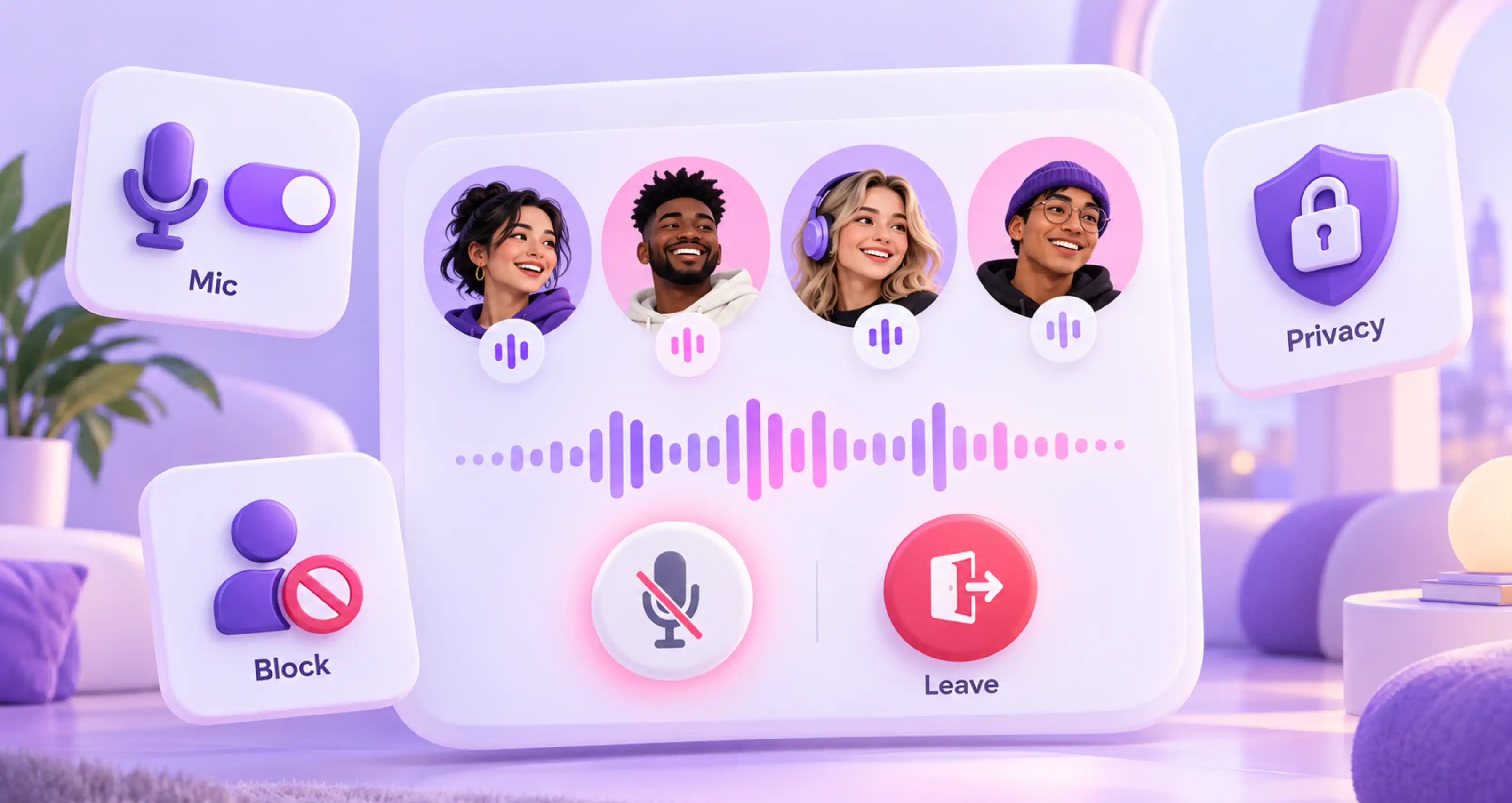
Mute your own microphone when you need to stop speaking temporarily, answer someone nearby, or reduce background noise. Confirm that the microphone indicator shows the expected state.
Muting yourself does not stop another person from contacting you. If unwanted interaction continues, use the relevant contact controls.
Block Unwanted Direct Contact
Blocking is appropriate when someone keeps messaging you, ignores your boundaries, or sends unwanted content.
On Xena, the official safety page directs users to open the account menu and select Block to stop unwanted direct contact. This is a personal contact control. Do not assume it removes the person from a shared room or bans their account across the platform.
You can block someone without first debating their behavior or sending a final explanation.
Report the Specific Behavior
Report harassment, impersonation, scams, or privacy violations through the relevant reporting option. Describe what happened clearly: the account involved, the location of the interaction, and the approximate time.
Xena’s usage guide covers reporting in private chats, profiles, Moments, Moments comments, voice rooms, and room comments. That distinction matters. If the problem is a private message, report that interaction rather than treating it only as a room issue.
Save useful details where safe and appropriate. You do not need to remain in an uncomfortable room to collect more evidence.
Understand Room Removal
Xena also has room-management controls that differ from personal blocking. Its usage guide lists kick-out durations of 3, 6, or 24 hours. A room owner can reverse kick-outs made by room administrators; an administrator can reverse their own action.
Room removal addresses participation in that room. Personal blocking addresses unwanted contact, while reporting asks the platform to review behavior. One action does not automatically replace the others.
Leave the Room and Confirm You Have Disconnected
Leave whenever you no longer want to participate. You do not owe the room a goodbye or an explanation.
Use the app’s explicit exit control and confirm that the room session has ended. Switching apps, locking your phone, or returning to another screen should not be your only check.
If microphone activity continues unexpectedly, review the app’s connection status and your device permissions. Android’s privacy dashboard can help you check which apps accessed relevant permissions.
Leaving ends your participation in the room. If someone continues contacting you afterward, address that separately through blocking or reporting.
Check Cross-Device Privacy on Xena
Room safety is only one part of privacy. Xena’s Message Roaming feature controls chat synchronization across devices signed in to your account.
The usage guide explains that enabling it synchronizes chats across logged-in devices; disabling it stops that synchronization. Review this setting if you use more than one device or have signed in on a device someone else can access.
Turning off synchronization should not be treated as deleting previously stored messages or changing encryption. Those are separate questions.
Xena also lists Go Invisible When Entering A Room at VIP 14. Treat this as a specific visibility option, not a guarantee that everything you do or say becomes anonymous.
Frequently Asked Questions
Can People Hear Me as Soon as I Join?
Check your microphone and speaking status. Joining, granting microphone permission, and transmitting your voice are different states. Do not assume that every app or room handles them identically.
Does Blocking Someone Remove Them from the Room?
Not necessarily. Xena describes blocking as stopping unwanted direct contact and lists separate room-removal controls. Do not rely on personal blocking to change another participant’s room access.
Are Voice Chat Rooms Recorded?
Check the platform’s current privacy and recording policies. Also consider that another participant could capture or repeat what they hear. A restricted room is not automatically a confidential space.
Should I Leave Before Reporting?
You can leave first if that feels more comfortable. Keep useful account or room details when safe, then use the available reporting tools. You do not have to continue participating while deciding what to do.
Before your next conversation, check your profile, permissions, and exit controls. Visit Xena’s Safety page for more information about reporting, blocking, and support.